> ## Documentation Index
> Fetch the complete documentation index at: https://docs.myzendo.com/llms.txt
> Use this file to discover all available pages before exploring further.
# Add Accessories & Organise Your Floorplan
> Optimise your floorplan for the best experience.
export const MenuButton = ({badged = false}) => ;
## Intro
Your Zendo floorplan is flexible and yours to personalise. Please configure it how you like.
However, here are some tips you might find helpful:
* Add accessories to the floorplan to control lights, thermostats, fans, blinds, curtains, and more.
* Less is more. Keeping only essential accessories on the floorplan makes it easier to find and control what you need.
* Use Home Assistant/Homey automations, scenes, and groups. Grouping accessories reduces visual clutter and simplifies control.
### Room accessories
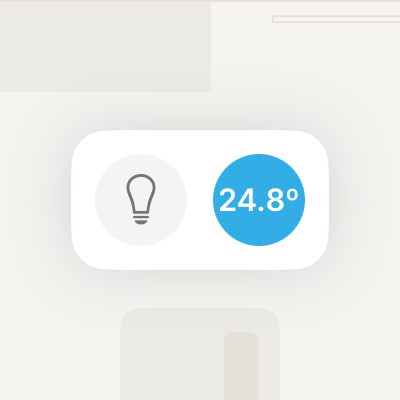 Each room on the Zendo floorplan can have room accessories to control the **entire room**.
Examples:
* Add a [light](/accessories/light) accessory that controls **all** the lights in the room.
* Add a [thermostat, aircon unit, or TRV](/accessories/climate) for each room that has one.
* Add a [fan](/accessories/ventilation) if the room has a ceiling fan or a single fan for the room.
* Add a [presence sensor](/accessories/presence-sensor) for each room that has a motion, presence, or occupancy sensor.
* Add [smoke, CO, gas or water leak sensors](/accessories/safety-sensor) for each room that has safety sensors.
### Other accessories
Each room on the Zendo floorplan can have room accessories to control the **entire room**.
Examples:
* Add a [light](/accessories/light) accessory that controls **all** the lights in the room.
* Add a [thermostat, aircon unit, or TRV](/accessories/climate) for each room that has one.
* Add a [fan](/accessories/ventilation) if the room has a ceiling fan or a single fan for the room.
* Add a [presence sensor](/accessories/presence-sensor) for each room that has a motion, presence, or occupancy sensor.
* Add [smoke, CO, gas or water leak sensors](/accessories/safety-sensor) for each room that has safety sensors.
### Other accessories
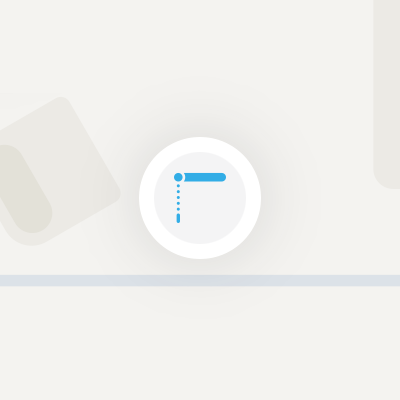 You can add any other accessory to the floorplan, such as:
* Place each [blind/curtain](/accessories/window-covering) next to the window where they’re installed.
* Add a [light](/accessories/light) accessory for task lighting like reading lights, a desk light, or a bedside light.
* Add [on/off accessories](/accessories/generic-on-off) like hairdryers, coffee makers, electric vehicle chargers, or turntables near their location in the room.
* Place each [smart door lock](/accessories/door-lock) next to the door where it’s installed.
* Place each [door or window sensor](/accessories/contact-sensor) next to the door or window where it’s installed.
* Place each [robot vacuum](/accessories/robotic-vacuum-cleaner) near its dock location.
* Add a [humidifier or dehumidifier](/accessories/humidifier-dehumidifier) near the device's location in the room.
* Add [Christmas trees](/accessories/generic-on-off) or other [festive decorations](/accessories/generic-on-off) near their spot in the room.
* Place [garage doors and electric gates](/accessories/automatic-closure) near where they’re installed.
***
## Add an accessory
1. Tap
2. Tap "Settings"
3. Tap "Edit Floorplan"
4. Tap the "+" at the bottom of the screen
5. Select the accessory you want to add and follow the on-screen instructions.
***
## Save your settings
When you’re done, tap "Done" in the top-right corner. Your changes will automatically sync across all your devices.
***
## Remove an accessory
1. Tap
2. Tap "Settings"
3. Tap "Edit Floorplan"
4. Tap the accessory you want to delete.
5. Tap "Delete" at the bottom of the screen.
### Remove a Speaker / Media Player
Speakers and media players are managed a little differently from other accessories. Please see [Speakers & Media Players](/accessories/media-player).
You can add any other accessory to the floorplan, such as:
* Place each [blind/curtain](/accessories/window-covering) next to the window where they’re installed.
* Add a [light](/accessories/light) accessory for task lighting like reading lights, a desk light, or a bedside light.
* Add [on/off accessories](/accessories/generic-on-off) like hairdryers, coffee makers, electric vehicle chargers, or turntables near their location in the room.
* Place each [smart door lock](/accessories/door-lock) next to the door where it’s installed.
* Place each [door or window sensor](/accessories/contact-sensor) next to the door or window where it’s installed.
* Place each [robot vacuum](/accessories/robotic-vacuum-cleaner) near its dock location.
* Add a [humidifier or dehumidifier](/accessories/humidifier-dehumidifier) near the device's location in the room.
* Add [Christmas trees](/accessories/generic-on-off) or other [festive decorations](/accessories/generic-on-off) near their spot in the room.
* Place [garage doors and electric gates](/accessories/automatic-closure) near where they’re installed.
***
## Add an accessory
1. Tap
2. Tap "Settings"
3. Tap "Edit Floorplan"
4. Tap the "+" at the bottom of the screen
5. Select the accessory you want to add and follow the on-screen instructions.
***
## Save your settings
When you’re done, tap "Done" in the top-right corner. Your changes will automatically sync across all your devices.
***
## Remove an accessory
1. Tap
2. Tap "Settings"
3. Tap "Edit Floorplan"
4. Tap the accessory you want to delete.
5. Tap "Delete" at the bottom of the screen.
### Remove a Speaker / Media Player
Speakers and media players are managed a little differently from other accessories. Please see [Speakers & Media Players](/accessories/media-player).