

Intro
With Zendo, you can see who’s at the door, talk to them, and take action, all from one screen. Smart doorbells work just like security cameras, with two extras: two-way audio so you can speak with your visitors, and the ability to unlock the door if you have a smart lock nearby.Set up your smart doorbells
- Tap
- Tap “Settings”
- Tap “Add or Change Accessories” (or “Edit Floorplan”)
- Tap “Activity & Cameras” at the bottom of your floorplan
- You can now add, change, or delete smart doorbells.
Using your smart doorbells
You can view all your smart doorbells regardless of your current floor. Simply tap the Activity & Cameras button. The Activity & Cameras view provides a snapshot of each doorbell for quick status checks. These snapshots refresh periodically.Live stream
Tap a doorbell to open its live stream.Two-way audio
While viewing the live stream, tap the microphone icon to talk to your guests and hear their reply. Handy for telling the courier where to leave a parcel or letting a friend know you’ll be right there.Home Assistant: two-way audio requires a WebRTC and a remote connection. It might not work on a local connection.
Control accessories
While watching a doorbell stream, you can control nearby accessories with ease:- Lights - turn on outdoor lights to see who’s there, even at night.
- Door lock - if you have a smart lock at your front door, you can unlock it directly from the camera view. To set this up, link the lock to the same room as the doorbell.
Push notifications
Get notified on your phone or tablet when someone rings the doorbell, with a snapshot image so you can see who’s there before opening the app.Home Assistant
Follow the push notifications setup guide to install the integration. Once set up, you can send notifications that open your doorbell’s live stream when tapped.Homey
Open the Zendo iOS/Android app, tap > Settings > Property > Push Notifications and follow the instructions on screen to install the Homey integration. If you’ve already set up push notifications, tap Refresh Settings to make sure your Homey settings are up to date. In Flows, you can set up automations like:- When: doorbell rings
- Then: select the Zendo app, then send a notification with image, and configure it
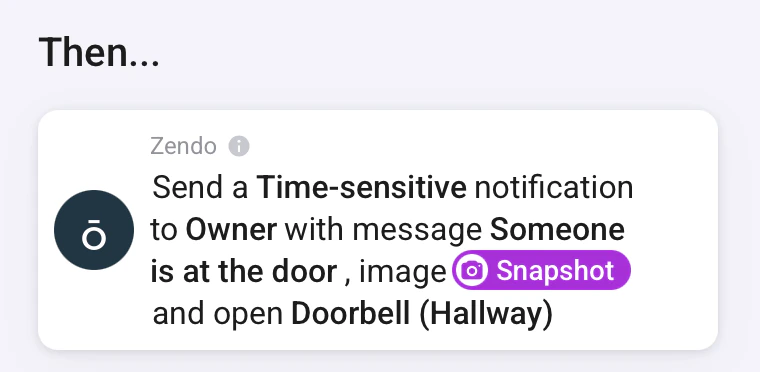
Tapping the notification will open the Zendo app and start the live stream. Your microphone is muted by default so you can check who’s at the door without letting them know.
If your doorbell doesn’t support snapshots, use the Send a push notification and open screen flow card instead of Send a push notification with image. It works the same way but without the image: configure the type, target, and message, then select your doorbell as the Open screen destination.
Opening a doorbell from a notification bypasses Family Sharing (Access Control). The receiver can view and control the doorbell even if they wouldn’t normally have access. Make sure you’re sending the notification to the right person.